

-
 Hello Guest! We're hosting a challenge to welcome vintage Intel macs to the MLA during the month of July! See this thread for more information.
 -
We've made some quality of life improvements to the Trading Post. More info here.
You are using an out of date browser. It may not display this or other websites correctly.
You should upgrade or use an alternative browser.
You should upgrade or use an alternative browser.
AppleColor RGB Monitor Repair
- Thread starter Sideburn
- Start date

I'm still trying.. No working IICX yet and i bought a VGA to DB15 adapter and tried hooking a powerbook G3 to it but no luck.@Sideburn did you ever hook up a working Mac to the CRT?
Is it one of those adapters with DIP switches? I think it needs to be, and it’s also important that it’s set up correctly. I imagine the PowerBook should just show one resolution in the monitors and sound control panel - 640x480@67Hz. Is that what it shows, is it something else or does it simply not see a monitor attached?
Yes it’s this one: https://www.ebay.com/itm/2710883571...Q425jH5TBq&var=&widget_ver=artemis&media=COPY
I tried every setting. Should it work? I wasn’t sure what the PowerBook g3 outputs. I think it’s a Pismo model.
I tried every setting. Should it work? I wasn’t sure what the PowerBook g3 outputs. I think it’s a Pismo model.
The pismo might not support this monitor.
I dunno. On my Beige G3, I can’t get it to show a picture out of my Rage 128 card, but the onboard Rage Pro does work with it. I think the Pismo has a Rage 128 Mobility, so maybe it’s just too new.
It’s not just a question of connecting up the wires. The monitor is fixed sync and the way that its sense pins are set up is not the same as a more modern multisync monitor. The Pismo probably doesn’t think there’s anything connected.
I reckon you need a Mac with a classic style DB-15 video port.
It’s not just a question of connecting up the wires. The monitor is fixed sync and the way that its sense pins are set up is not the same as a more modern multisync monitor. The Pismo probably doesn’t think there’s anything connected.
I reckon you need a Mac with a classic style DB-15 video port.
Last edited:
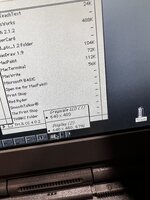
Well I’m back at it with a repaired PowerBook 180 and video cable so I can test.
The bad news. No picture.
The good news it’s filling the screen with white so it’s doing something.
And it’s showing up on the Mac.
Video and photos attached:
View attachment IMG_5792.mov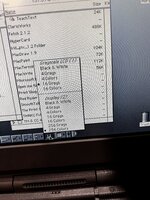
The bad news. No picture.
The good news it’s filling the screen with white so it’s doing something.
And it’s showing up on the Mac.
Video and photos attached:
View attachment IMG_5792.mov
Well I’m back at it with a repaired PowerBook 180 and video cable so I can test.
The bad news. No picture.
The good news it’s filling the screen with white so it’s doing something.
And it’s showing up on the Mac.
Video and photos attached:
Ah, that is disappointing.
Sorry if it’s an obvious question but is it definitely showing all white, as opposed to a grey pattern? I would try setting a more ‘busy’ desktop pattern than your solid grey one as the PowerBook 180 does not typically show very much else on a secondary screen unless you start dragging windows and icons across.
Another thing to check is the short PowerBook video adapter cable which is not always reliable in terms of making a good connection into the back of the computer.
Good point I see some color on the edges of the screen. I’ll try mirroring. And moving windows around.Ah, that is disappointing.
Sorry if it’s an obvious question but is it definitely showing all white, as opposed to a grey pattern? I would try setting a more ‘busy’ desktop pattern than your solid grey one as the PowerBook 180 does not typically show very much else on a secondary screen unless you start dragging windows and icons across.
Another thing to check is the short PowerBook video adapter cable which is not always reliable in terms of making a good connection into the back of the computer.
Ah, that is disappointing.
Sorry if it’s an obvious question but is it definitely showing all white, as opposed to a grey pattern? I would try setting a more ‘busy’ desktop pattern than your solid grey one as the PowerBook 180 does not typically show very much else on a secondary screen unless you start dragging windows and icons across.
Another thing to check is the short PowerBook video adapter cable which is not always reliable in terms of making a good connection into the back of the computer.
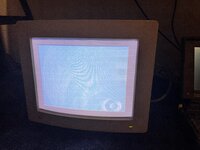
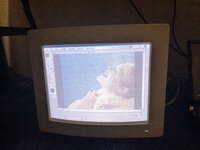
I got a chance to hook it back up again and you were right it wasn’t mirroring the screen. Once I dragged a window in there it showed up. So there IS an image, it’s just very washed out and it’s got those diagonal horizontal retrace lines in it.
Caps??
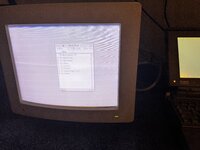
Took some more photos after changing it to the primary display. Seems like there’s 3 issues.
1) it’s showing the horizontal retrace lines
2) the r g and b convergence is off
3) there’s hardly any brightness control. The darkest black is light gray.
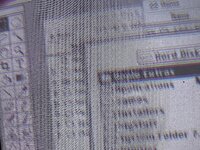
*** after looking at the service manual : https://www.applerepairmanuals.com/the_manuals_are_in_here/AppleColor_High_Res_RGB_Mon.pdf
I am thinking that maybe the horizontal retrace lines are visible because the brightness is so high.
Thinking maybe if I’m lucky I might be able to get things pretty good only by making adjustments to the focus , brightness and convergence after opening it up.
1) it’s showing the horizontal retrace lines
2) the r g and b convergence is off
3) there’s hardly any brightness control. The darkest black is light gray.
*** after looking at the service manual : https://www.applerepairmanuals.com/the_manuals_are_in_here/AppleColor_High_Res_RGB_Mon.pdf
I am thinking that maybe the horizontal retrace lines are visible because the brightness is so high.
Thinking maybe if I’m lucky I might be able to get things pretty good only by making adjustments to the focus , brightness and convergence after opening it up.
Last edited:
The retrace lines and the washed out image are the same issue and I would start by adjusting the ‘cutoff’ pot at the back of the display. It’s located above the other pots that you can access at the rear, but you have to have the casing off to get to it.
Set the contrast knob to maximum and set the brightness knob to the middle setting. Then, with the monitor on (but being careful not to accidentally touch any high voltage areas) turn down the cutoff until the black areas of the image are completely black. It may be easier to do this in a darkened room. You will find the retrace lines are gone at this point, too.
While you’re doing this I’d reduce the horizontal and vertical adjustments as the picture is too big. It shouldn’t go right up to the edges of the visible area, instead there should be a black border.
The convergence is a different issue and I suspect it’s probably caused by bad capacitors that are no longer operating in spec. It’s not an easy adjustment to do and personally I would recap the monitor before fiddling.
Set the contrast knob to maximum and set the brightness knob to the middle setting. Then, with the monitor on (but being careful not to accidentally touch any high voltage areas) turn down the cutoff until the black areas of the image are completely black. It may be easier to do this in a darkened room. You will find the retrace lines are gone at this point, too.
While you’re doing this I’d reduce the horizontal and vertical adjustments as the picture is too big. It shouldn’t go right up to the edges of the visible area, instead there should be a black border.
The convergence is a different issue and I suspect it’s probably caused by bad capacitors that are no longer operating in spec. It’s not an easy adjustment to do and personally I would recap the monitor before fiddling.
The retrace lines and the washed out image are the same issue and I would start by adjusting the ‘cutoff’ pot at the back of the display. It’s located above the other pots that you can access at the rear, but you have to have the casing off to get to it.
Set the contrast knob to maximum and set the brightness knob to the middle setting. Then, with the monitor on (but being careful not to accidentally touch any high voltage areas) turn down the cutoff until the black areas of the image are completely black. It may be easier to do this in a darkened room. You will find the retrace lines are gone at this point, too.
While you’re doing this I’d reduce the horizontal and vertical adjustments as the picture is too big. It shouldn’t go right up to the edges of the visible area, instead there should be a black border.
The convergence is a different issue and I suspect it’s probably caused by bad capacitors that are no longer operating in spec. It’s not an easy adjustment to do and personally I would recap the monitor before fiddling.
Thanks. Yeah I just read similar instructions i the service manual. I will open it up tomorrow.
I want to re-cap it as well. Unfortunately there’s no cap kits that I can find on console5 or elsewhere so I’ll have to build my own BOM and order them.
I did find the Display Service Utility: https://www.macintoshrepository.org/39821-display-service-utility
The service manual explains how to adjust the convergence with the H-STAT, V-STAT, V-Top, and V-bottom pots…
@jmacz helpfully provided us with their cap list here: https://68kmla.org/bb/index.php?thr...on-monitor-weird-distortion.43266/post-496854I want to re-cap it as well. Unfortunately there’s no cap kits that I can find on console5 or elsewhere so I’ll have to build my own BOM and order them.
You could always try to play with the convergence but what I suspect is that once you recap it, it will need adjusting again. Maybe you could mark/record how it is adjusted now so you can go back to the original settings if needed.
Btw, even on my properly set up display, my brightness knob has a very limited range as well. It’s not very useful.
@jmacz helpfully provided us with their cap list here: https://68kmla.org/bb/index.php?thr...on-monitor-weird-distortion.43266/post-496854
You could always try to play with the convergence but what I suspect is that once you recap it, it will need adjusting again. Maybe you could mark/record how it is adjusted now so you can go back to the original settings if needed.
Thanks for the link and wow that’s a lot of caps!
Btw, even on my properly set up display, my brightness knob has a very limited range as well. It’s not very useful.
Ahh ok good to know. Maybe I can ESR check the caps in circuit?
Hmm, I think you’d need to remove them to get the correct readings. It’s a lot of caps indeed.Ahh ok good to know. Maybe I can ESR check the caps in circuit?
Similar threads
- Replies
- 0
- Views
- 222
- Replies
- 4
- Views
- 390


- Replies
- 4
- Views
- 689