• Hello MLAers! We've re-enabled auto-approval for accounts. If you are still waiting on account approval, please check this thread for more information.

Need help Iding cards.

And the card works. Thank you help on this.

I have xceed Se/306-48 card that I get signal but no clear picture. Do you have experience with that?
 

Attachments

  • IMG_2837.jpeg
    IMG_2837.jpeg
    3.2 MB · Views: 10
And the card works. Thank you help on this.

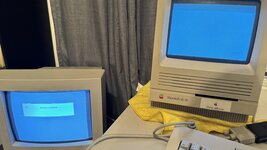
Glad to hear it! One thing to be aware of with it, that I don't think I directly mentioned - it can't tell whether or not a monitor is connected, and the SE/30 seems to default to using it as the main display and the internal display as the secondary. So if you've got the card installed, you've basically got to keep a monitor attached to it, otherwise your mouse cursor is liable to disappear off-screen.

I have xceed Se/306-48 card that I get signal but no clear picture. Do you have experience with that?
Never had one of those, sorry!
 
Glad to hear it! One thing to be aware of with it, that I don't think I directly mentioned - it can't tell whether or not a monitor is connected, and the SE/30 seems to default to using it as the main display and the internal display as the secondary. So if you've got the card installed, you've basically got to keep a monitor attached to it, otherwise your mouse cursor is liable to disappear off-screen.
I did notice that. When I had card installed it will default to monitor and if the monitor was not plugged nothing will display SE screen. I was not able to move the cursor to second screen. Is it possible to use dual screen with this card?
 
Is it possible to use dual screen with this card?
Yes, definitely! Open the Monitors control panel, and you can drag the two displays around to match the layout on your desk. I think you have to click each display at least once to make them both active.

You can drag the tiny menu bar to choose which display has the menu bar on it, and if you hold down Option, a little Happy Mac icon appears - dragging that to one monitor or another sets which one is considered the “main” display.

 
Yes, definitely! Open the Monitors control panel, and you can drag the two displays around to match the layout on your desk. I think you have to click each display at least once to make them both active.

You can drag the tiny menu bar to choose which display has the menu bar on it, and if you hold down Option, a little Happy Mac icon appears - dragging that to one monitor or another sets which one is considered the “main” display.
Wow nice. I will try that. Thank you.
 
Yes, definitely! Open the Monitors control panel, and you can drag the two displays around to match the layout on your desk. I think you have to click each display at least once to make them both active.

You can drag the tiny menu bar to choose which display has the menu bar on it, and if you hold down Option, a little Happy Mac icon appears - dragging that to one monitor or another sets which one is considered the “main” display.
@halkyardo, you have made my day my friend. I have been looking for a way to either disable my RasterOps Colorboard 264/SE30 when not using a second monitor and stumbled upon this post while at work.

First thing I did when I got home was fire up my SE/30 and would you know it, dragging the tiny toolbar from the default external monitor to the internal one as well as holding down the option key and being greeted to a happy mac which I dragged over to the internal monitor made the internal display the main monitor after a system restart.

I can't thank you enough!! I must ask how you stumbled upon this feature? I've been looking everywhere for any documentation on the card and have come up dry. If you found this out simply by trial and error you are simply amazing because I would have never thought to try that.

THANK YOU!
 
Dragging the menu bar to set the primary monitor has been a built-in MacOS feature for as long as it's had multiple monitor support.
 
Back
Top